Documentation
Everything you need to know about AI Prompt Cost — from first setup to advanced analytics.
What is AI Prompt Cost
AI Prompt Cost is a multi-provider AI proxy that gives you full cost visibility for every LLM request your application makes. Point your existing OpenAI or Anthropic calls at our proxy endpoint and instantly get per-request cost tracking, team-level attribution, prompt versioning, and a real-time analytics dashboard — all without changing your SDK or prompt logic.
How it works:
- Your app sends a standard API request (OpenAI or Anthropic format) to the AI Prompt Cost proxy endpoint
- AI Prompt Cost validates your platform API key and forwards the request to the upstream provider using your user's provider key
- The provider's response is returned to your app, unmodified
- Usage metadata (model, cost, prompt key, feature tags) is logged asynchronously — never blocking your request
prompt_key, feature_tags).Getting Started
Get up and running with AI Prompt Cost in minutes. Follow these steps to create your account, set up your first team, and send a tracked API request.
Sign up for an account
Complete the onboarding walkthrough
Create a team and API key
Authorization header of every proxy request.Point your app at the proxy
Replace your provider base URL with the AI Prompt Cost proxy endpoint. All endpoints follow the pattern:
https://aipromptcost.com/api/proxy/v1/[provider]/[provider-api-route]For example:
OpenAI:    POST https://aipromptcost.com/api/proxy/v1/openai/chat/completions
Anthropic: POST https://aipromptcost.com/api/proxy/v1/anthropic/messages
Add the required headers described in the API Integration section.
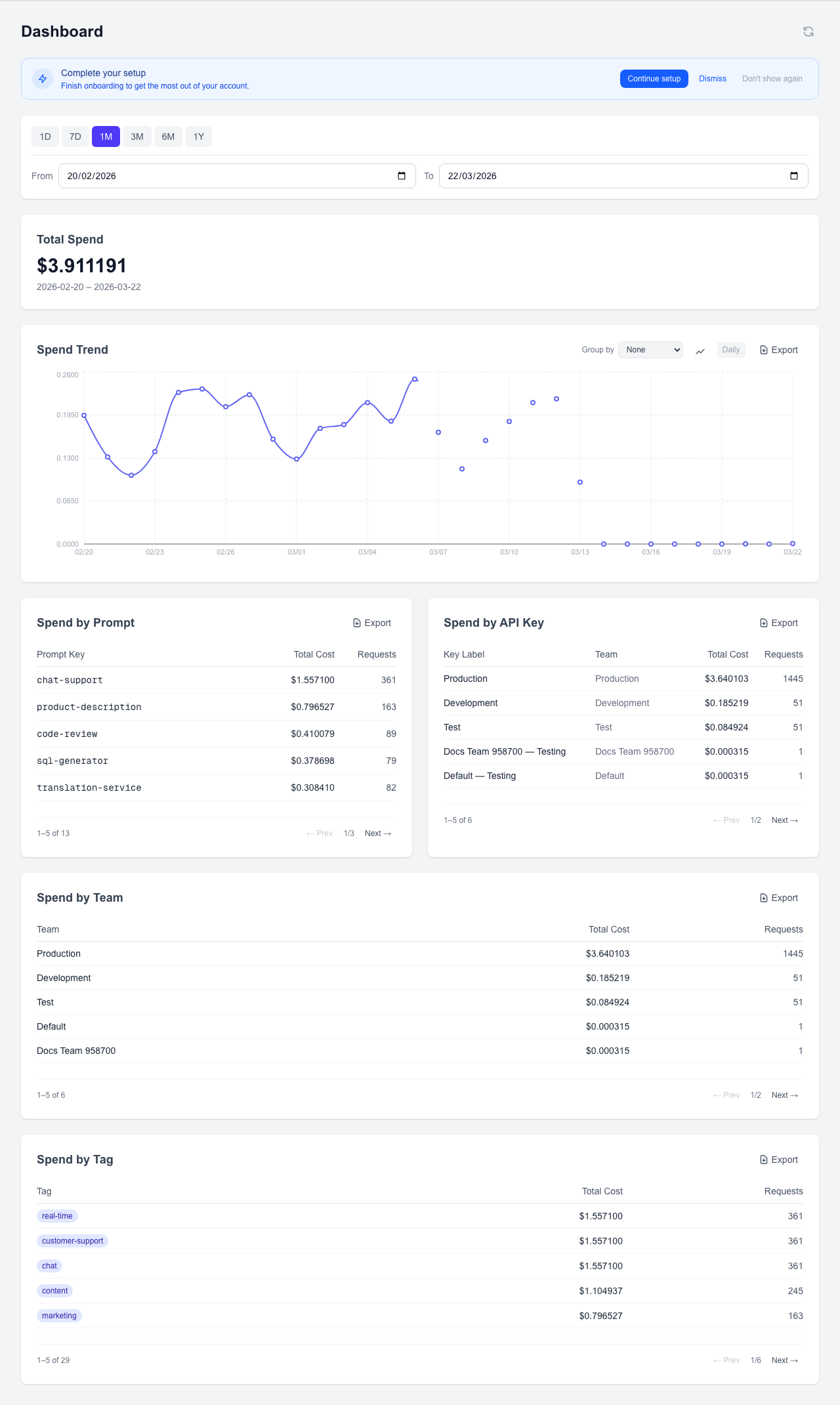
Screenshot: Dashboard home page after first login showing the empty state with quick-start prompts
Onboarding Walkthrough
When you first sign up, AI Prompt Cost guides you through an interactive onboarding flow. Here's what to expect at each step:
1. Welcome Screen
The welcome screen introduces AI Prompt Cost and explains what you'll set up during onboarding. Click "Get Started" to begin.

Screenshot: Onboarding welcome screen with introduction text and Get Started button
2. API Key Creation
You'll create your first AI Prompt Cost API key. This key authenticates your proxy requests. Copy it immediately — it's only shown once.

Screenshot: Onboarding API key creation step showing the generated key and copy button
3. Sandbox Prompt
Enter your OpenAI provider key and send a test prompt through the proxy. This verifies your setup is working and gives you a feel for how the integration works. The sandbox sends a real request to OpenAI via the AI Prompt Cost proxy.

Screenshot: Onboarding sandbox prompt step with provider key input and test prompt form
4. Results View
After sending the test prompt, you'll see the response along with cost and usage metadata. This demonstrates the kind of data AI Prompt Cost captures for every request.

Screenshot: Onboarding results step showing the AI response, cost breakdown, and usage metadata
5. Integration Code
The final step provides ready-to-use code snippets in multiple languages. Copy the snippet for your stack and drop it into your application to start tracking costs immediately.

Screenshot: Onboarding integration code step with language tabs and copy-ready code snippets
API Integration
AI Prompt Cost acts as a multi-provider proxy. You send requests to our endpoint instead of directly to OpenAI or Anthropic, and we forward them while capturing cost and usage metadata. Both providers use the same consistent URL pattern and authentication mechanism.
Supported Providers
| Provider | Proxy Endpoint | Auth Header |
|---|---|---|
| OpenAI | /api/proxy/v1/openai/chat/completions | Authorization: Bearer sk-... |
| Anthropic | /api/proxy/v1/anthropic/messages | x-api-key: sk-ant-... |
Required Headers (all providers)
| Header | Required | Description |
|---|---|---|
| Authorization | Yes | Bearer your_ai_prompt_cost_api_key_here — Your AI Prompt Cost platform API key |
| X-Provider-Key | Yes | Your user's provider API key (OpenAI sk-... or Anthropic sk-ant-...) |
prompt_key, feature_tags).Provider Route Pattern
All proxy endpoints follow a consistent URL structure:
POST https://aipromptcost.com/api/proxy/[proxy-version]/[provider]/[provider-api-route]proxy-version — The AI Prompt Cost proxy API version (currently v1). This segment allows future breaking changes to the proxy itself to be introduced under a new version without disrupting existing integrations. It is not the provider's own API version.provider — The upstream AI provider name: openai or anthropic.provider-api-route — The provider's own API path, forwarded as-is to the upstream. For example, chat/completions for OpenAI or messages for Anthropic.Provider Versioning
Provider API versioning is handled transparently by the proxy — you do not need to include a provider version in the URL. Each provider's versioning works differently:
| Provider | Versioning Behavior |
|---|---|
| OpenAI | No version header required. The proxy always forwards to https://api.openai.com/v1/chat/completions where /v1/ is part of the fixed upstream URL. |
| Anthropic | The proxy passes through the anthropic-version header from your request directly to Anthropic. If absent, it defaults to 2023-06-01. The Anthropic SDK sets this header automatically. |
OpenAI Integration
Send OpenAI chat completion requests through the proxy by pointing your client at the OpenAI proxy endpoint. The request and response formats are identical to the OpenAI API.
Endpoint
POST https://aipromptcost.com/api/proxy/v1/openai/chat/completionsHeaders
| Header | Required | Value |
|---|---|---|
| Authorization | Yes | Bearer <your_ai_prompt_cost_api_key> |
| X-Provider-Key | Yes | sk-... (your OpenAI API key) |
| Content-Type | Yes | application/json |
Request Example
{
  "model": "gpt-4o",
  "messages": [
    { "role": "system", "content": "You are a helpful assistant." },
    { "role": "user", "content": "Summarize this document..." }
  ],
  "temperature": 0.7,
  "max_tokens": 500,
  "_aipromptcost": {
    "prompt_key": "document-summarizer",
    "feature_tags": ["summarization", "documents"],
    "version": 2
  }
}
Response Example
The proxy returns the unmodified OpenAI response. The _aipromptcost object is stripped before forwarding and never appears in the upstream request.
{
  "id": "chatcmpl-abc123",
  "object": "chat.completion",
  "created": 1700000000,
  "model": "gpt-4o",
  "choices": [
    {
      "index": 0,
      "message": { "role": "assistant", "content": "Here is a summary..." },
      "finish_reason": "stop"
    }
  ],
  "usage": { "prompt_tokens": 42, "completion_tokens": 120, "total_tokens": 162 }
}
Using the OpenAI SDK
from openai import OpenAI

client = OpenAI(
    api_key='your_ai_prompt_cost_api_key_here',
    base_url='https://aipromptcost.com/api/proxy/v1/openai',
    default_headers={
        'X-Provider-Key': 'sk-user_openai_key_here',
    }
)

response = client.chat.completions.create(
    model='gpt-4o',
    messages=[{'role': 'user', 'content': 'Hello!'}],
    extra_body={
        '_aipromptcost': {
            'prompt_key': 'document-summarizer',
            'feature_tags': ['summarization', 'documents'],
            'version': 2,
        }
    }
)
Anthropic Integration
Send Anthropic Messages API requests through the proxy by pointing your client at the Anthropic proxy endpoint. The request and response formats are identical to the Anthropic API.
Endpoint
POST https://aipromptcost.com/api/proxy/v1/anthropic/messagesHeaders
| Header | Required | Value |
|---|---|---|
| Authorization | Yes | Bearer <your_ai_prompt_cost_api_key> |
| X-Provider-Key | Yes | sk-ant-... (your Anthropic API key) |
| Content-Type | Yes | application/json |
| anthropic-version | No | 2023-06-01 (default if omitted; set automatically by Anthropic SDK) |
2023-06-01.Request Example
{
  "model": "claude-sonnet-4-20250514",
  "max_tokens": 500,
  "messages": [
    { "role": "user", "content": "Summarize this document..." }
  ],
  "system": "You are a helpful assistant.",
  "_aipromptcost": {
    "prompt_key": "document-summarizer",
    "feature_tags": ["summarization", "documents"],
    "version": 2
  }
}
Response Example
The proxy returns the unmodified Anthropic response. The _aipromptcost object is stripped before forwarding and never appears in the upstream request.
{
  "id": "msg_abc123",
  "type": "message",
  "role": "assistant",
  "content": [
    { "type": "text", "text": "Here is a summary..." }
  ],
  "model": "claude-sonnet-4-20250514",
  "stop_reason": "end_turn",
  "stop_sequence": null,
  "usage": { "input_tokens": 42, "output_tokens": 120 }
}
Using the Anthropic SDK
import anthropic

client = anthropic.Anthropic(
    api_key='your_anthropic_key_here',
    base_url='https://aipromptcost.com/api/proxy/v1/anthropic',
    default_headers={
        'Authorization': 'Bearer your_ai_prompt_cost_api_key_here',
        'X-Provider-Key': 'sk-ant-user_anthropic_key_here',
    }
)

message = client.messages.create(
    model='claude-sonnet-4-20250514',
    max_tokens=500,
    messages=[{'role': 'user', 'content': 'Summarize this document...'}],
    # Pass _aipromptcost via extra_headers or extra_body depending on SDK version
)import Anthropic from '@anthropic-ai/sdk';
const client = new Anthropic({
apiKey: 'your_anthropic_key_here',
baseURL: 'https://aipromptcost.com/api/proxy/v1/anthropic',
defaultHeaders: {
'Authorization': 'Bearer your_ai_prompt_cost_api_key_here',
'X-Provider-Key': 'sk-ant-user_anthropic_key_here',
},
});
const message = await client.messages.create({
model: 'claude-sonnet-4-20250514',
max_tokens: 500,
messages: [{ role: 'user', content: 'Summarize this document...' }],
});
console.log(message.content[0].text);Metadata & Cost Tracking
Include an _aipromptcost object in your request body to attach tracking metadata. This object is stripped before forwarding to the upstream provider and works identically for both OpenAI and Anthropic.
OpenAI request
{
  "model": "gpt-4o",
  "messages": [...],
  "_aipromptcost": {
    "prompt_key": "document-summarizer",
    "feature_tags": ["summarization", "documents"],
    "version": 2
  }
}
Anthropic request
{
  "model": "claude-sonnet-4-20250514",
  "messages": [...],
  "max_tokens": 500,
  "_aipromptcost": {
    "prompt_key": "document-summarizer",
    "feature_tags": ["summarization", "documents"],
    "version": 2
  }
}
prompt_key (recommended) — A unique identifier for this prompt. Use a consistent, descriptive slug like document-summarizer or chat-assistant. This is the primary key for cost attribution and analytics grouping.feature_tags (optional) — An array of string tags for categorizing requests by product feature. Use tags like ["onboarding", "email"] to slice costs by feature area in the dashboard.version (optional) — An integer version number to associate this request with a specific prompt version. If omitted, the currently active version is used automatically.Provider-specific differences
The _aipromptcost object works identically for both providers. The only difference is where it sits in the request body: for OpenAI it sits alongside model and messages; for Anthropic it sits alongside model, messages, and max_tokens (which is required by Anthropic). In both cases, the proxy strips it before forwarding.
Request Headers
| Header | Required | Description |
|---|---|---|
| Authorization | Yes | Bearer your_ai_prompt_cost_api_key_here — Your AI Prompt Cost platform API key |
| X-Provider-Key | Yes | Your user's provider API key (OpenAI sk-... or Anthropic sk-ant-...) |
| Content-Type | Yes | application/json — All requests must be JSON-encoded |
| anthropic-version | No | Anthropic only. Passed through to Anthropic API. Defaults to 2023-06-01 if omitted. Set automatically by the Anthropic SDK. |
| X-Sandbox | No | Set to 'true' to enable sandbox mode — returns a simulated response without calling the upstream provider. |
Request Body Metadata
Metadata is passed in the request body under the _aipromptcost object. See the Metadata & Cost Tracking section for full details.
prompt_key (recommended) — Identifies which prompt this request belongs tofeature_tags (optional) — Array of feature tags for categorizationversion (optional) — Specific version number to associate with this requestCode Examples
Examples for both OpenAI and Anthropic endpoints — pick your provider and language.
OpenAI — JavaScript / Node.js
const response = await fetch(
  'https://aipromptcost.com/api/proxy/v1/openai/chat/completions',
  {
    method: 'POST',
    headers: {
      'Content-Type': 'application/json',
      'Authorization': 'Bearer your_ai_prompt_cost_api_key_here',
      'X-Provider-Key': 'sk-user_openai_key_here',
    },
    body: JSON.stringify({
      model: 'gpt-4o',
      messages: [
        { role: 'system', content: 'You are a helpful assistant.' },
        { role: 'user', content: 'Summarize this document...' },
      ],
      temperature: 0.7,
      max_tokens: 500,
      _aipromptcost: {
        prompt_key: 'document-summarizer',
        feature_tags: ['summarization', 'documents'],
        version: 2,
      },
    }),
  }
);

const data = await response.json();
console.log(data.choices[0].message.content);
Anthropic — JavaScript / Node.js
const response = await fetch(
  'https://aipromptcost.com/api/proxy/v1/anthropic/messages',
  {
    method: 'POST',
    headers: {
      'Content-Type': 'application/json',
      'Authorization': 'Bearer your_ai_prompt_cost_api_key_here',
      'X-Provider-Key': 'sk-ant-user_anthropic_key_here',
    },
    body: JSON.stringify({
      model: 'claude-sonnet-4-20250514',
      max_tokens: 500,
      messages: [
        { role: 'user', content: 'Summarize this document...' },
      ],
      system: 'You are a helpful assistant.',
      _aipromptcost: {
        prompt_key: 'document-summarizer',
        feature_tags: ['summarization', 'documents'],
        version: 2,
      },
    }),
  }
);

const data = await response.json();
console.log(data.content[0].text);
OpenAI — Python (requests)
import requests

response = requests.post(
    'https://aipromptcost.com/api/proxy/v1/openai/chat/completions',
    headers={
        'Content-Type': 'application/json',
        'Authorization': 'Bearer your_ai_prompt_cost_api_key_here',
        'X-Provider-Key': 'sk-user_openai_key_here',
    },
    json={
        'model': 'gpt-4o',
        'messages': [
            {'role': 'system', 'content': 'You are a helpful assistant.'},
            {'role': 'user', 'content': 'Summarize this document...'},
        ],
        'temperature': 0.7,
        'max_tokens': 500,
        '_aipromptcost': {
            'prompt_key': 'document-summarizer',
            'feature_tags': ['summarization', 'documents'],
            'version': 2,
        },
    }
)

data = response.json()
print(data['choices'][0]['message']['content'])
Anthropic — Python (requests)
import requests

response = requests.post(
    'https://aipromptcost.com/api/proxy/v1/anthropic/messages',
    headers={
        'Content-Type': 'application/json',
        'Authorization': 'Bearer your_ai_prompt_cost_api_key_here',
        'X-Provider-Key': 'sk-ant-user_anthropic_key_here',
    },
    json={
        'model': 'claude-sonnet-4-20250514',
        'max_tokens': 500,
        'messages': [
            {'role': 'user', 'content': 'Summarize this document...'},
        ],
        'system': 'You are a helpful assistant.',
        '_aipromptcost': {
            'prompt_key': 'document-summarizer',
            'feature_tags': ['summarization', 'documents'],
            'version': 2,
        },
    }
)

data = response.json()
print(data['content'][0]['text'])
OpenAI — Python SDK
from openai import OpenAI

client = OpenAI(
    api_key='your_ai_prompt_cost_api_key_here',
    base_url='https://aipromptcost.com/api/proxy/v1/openai',
    default_headers={
        'X-Provider-Key': 'sk-user_openai_key_here',
    }
)

response = client.chat.completions.create(
    model='gpt-4o',
    messages=[{'role': 'user', 'content': 'Hello!'}],
    extra_body={
        '_aipromptcost': {
            'prompt_key': 'document-summarizer',
            'feature_tags': ['summarization', 'documents'],
            'version': 2,
        }
    }
)
OpenAI — cURL
curl -X POST https://aipromptcost.com/api/proxy/v1/openai/chat/completions \
  -H "Content-Type: application/json" \
  -H "Authorization: Bearer your_ai_prompt_cost_api_key_here" \
  -H "X-Provider-Key: sk-user_openai_key_here" \
  -d '{
    "model": "gpt-4o",
    "messages": [{"role": "user", "content": "Hello!"}],
    "_aipromptcost": {
      "prompt_key": "document-summarizer",
      "feature_tags": ["summarization", "documents"],
      "version": 2
    }
  }'
Anthropic — cURL
curl -X POST https://aipromptcost.com/api/proxy/v1/anthropic/messages \
  -H "Content-Type: application/json" \
  -H "Authorization: Bearer your_ai_prompt_cost_api_key_here" \
  -H "X-Provider-Key: sk-ant-user_anthropic_key_here" \
  -d '{
    "model": "claude-sonnet-4-20250514",
    "max_tokens": 500,
    "messages": [{"role": "user", "content": "Hello!"}],
    "_aipromptcost": {
      "prompt_key": "document-summarizer",
      "feature_tags": ["summarization", "documents"],
      "version": 2
    }
  }'
Prompt Builder
The Prompt Builder is a visual tool that generates ready-to-use integration code for your prompts. Instead of writing API calls by hand, configure your parameters in the builder and copy the generated code directly into your application.
Using the Builder
- Open the Prompt Builder from the dashboard sidebar or the prompts page
- Configure your prompt parameters: model, temperature, max_tokens, prompt_key, and feature_tags
- Select your target language (JavaScript, Python, cURL, etc.)
- Copy the generated code snippet and paste it into your application
Code Import
Already using the OpenAI API directly? The Prompt Builder's code import feature can detect direct OpenAI usage in your code and convert it to AI Prompt Cost proxy calls. Paste your existing code into the import dialog, and the builder will rewrite it to use the proxy endpoint with the correct headers and metadata object.

Screenshot: Prompt Builder dialog showing parameter configuration form on the left and generated code panel on the right
Dashboard Analytics
The dashboard is your central hub for understanding AI costs. It provides real-time analytics across multiple dimensions — by prompt, team, API key, and feature tag.
Monthly Spend Card
The top-level spend card shows your total cost for the current billing period at a glance. Use it to quickly check whether spending is on track or needs attention.

Screenshot: Monthly spend card showing total cost, request count, and period dates
Spend Trend Chart
The trend chart plots cost over time, helping you spot growth patterns, the impact of prompt changes, or unexpected spikes. Hover over data points for daily breakdowns.

Screenshot: Spend trend chart showing daily cost over the selected date range
Spend by Prompt
Shows all registered prompt keys ranked by total cost and request count. Use this to identify your most expensive prompts and prioritize optimization efforts. Click any prompt row to open the version comparison modal and see cost differences across versions.

Screenshot: Spend by Prompt table showing prompt keys, total cost, and request counts
Spend by API Key
Breaks down costs by individual API key. Useful for identifying which integrations or services are driving the most usage.

Screenshot: Spend by API Key table showing key names, associated teams, and costs
Spend by Team
Breaks down costs by team name (derived from the API key used). Useful for chargeback reporting or understanding which teams are scaling their AI usage fastest.

Screenshot: Spend by Team table showing team names, total cost, and request counts
Spend by Tag
Groups costs by feature tags, letting you understand AI spend per product feature area. This is especially useful for product teams tracking the cost of AI-powered features.

Screenshot: Spend by Tag table showing feature tags and associated costs
Date Range Filter
All dashboard views support date range filtering. Select a custom range to analyze a specific sprint, release window, or billing period. The filter applies to all tables and charts simultaneously.

Screenshot: Date range filter showing calendar picker with custom range selection
Version Comparison
Click any prompt in the "Spend by Prompt" table to open the version comparison modal. This shows cost and request volume side-by-side across all versions, helping you validate whether a configuration change reduced costs.
Prompt Management
Prompts are the core organizational unit in AI Prompt Cost. Each prompt represents a distinct use case in your application (e.g., "document-summarizer", "chat-assistant") and can have multiple versioned configurations.
Prompts List
The prompts page shows all registered prompts with their current active version, total cost, and request count. Click any prompt to view its details and version history.
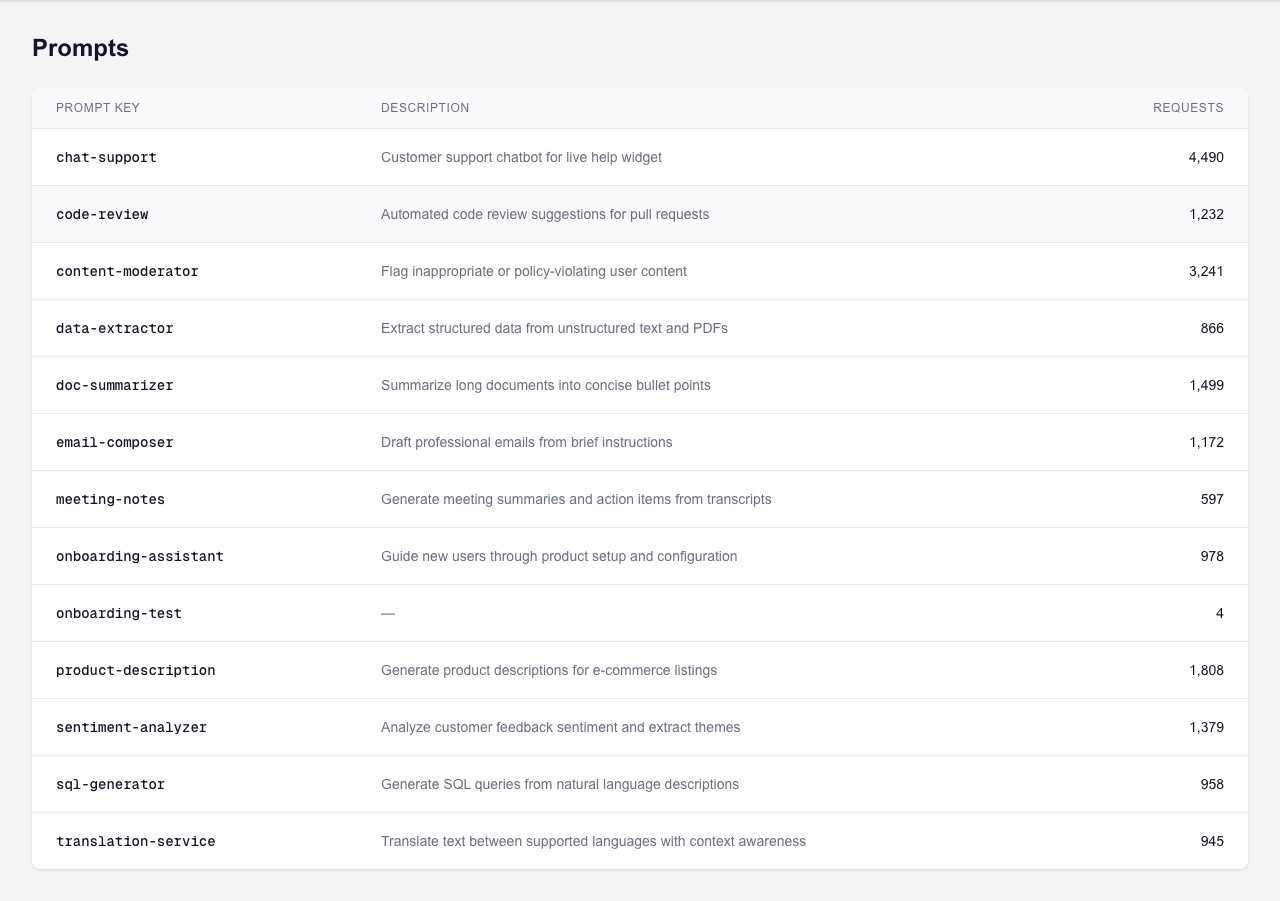
Screenshot: Prompts list page showing registered prompts with active version, cost, and request count columns
How Prompts Are Created
Prompts can be created in two ways:
- Auto-creation on first API use: When you send a request with a new
prompt_key, AI Prompt Cost automatically creates a prompt record. This is the easiest way to get started. - Pre-registration in the dashboard: Create prompts manually before sending traffic. This lets you add descriptions, set up versioning, and organize prompts before they receive any requests.
Prompt Detail
The prompt detail page shows the full version history, cost breakdown per version, and lets you manage versions.
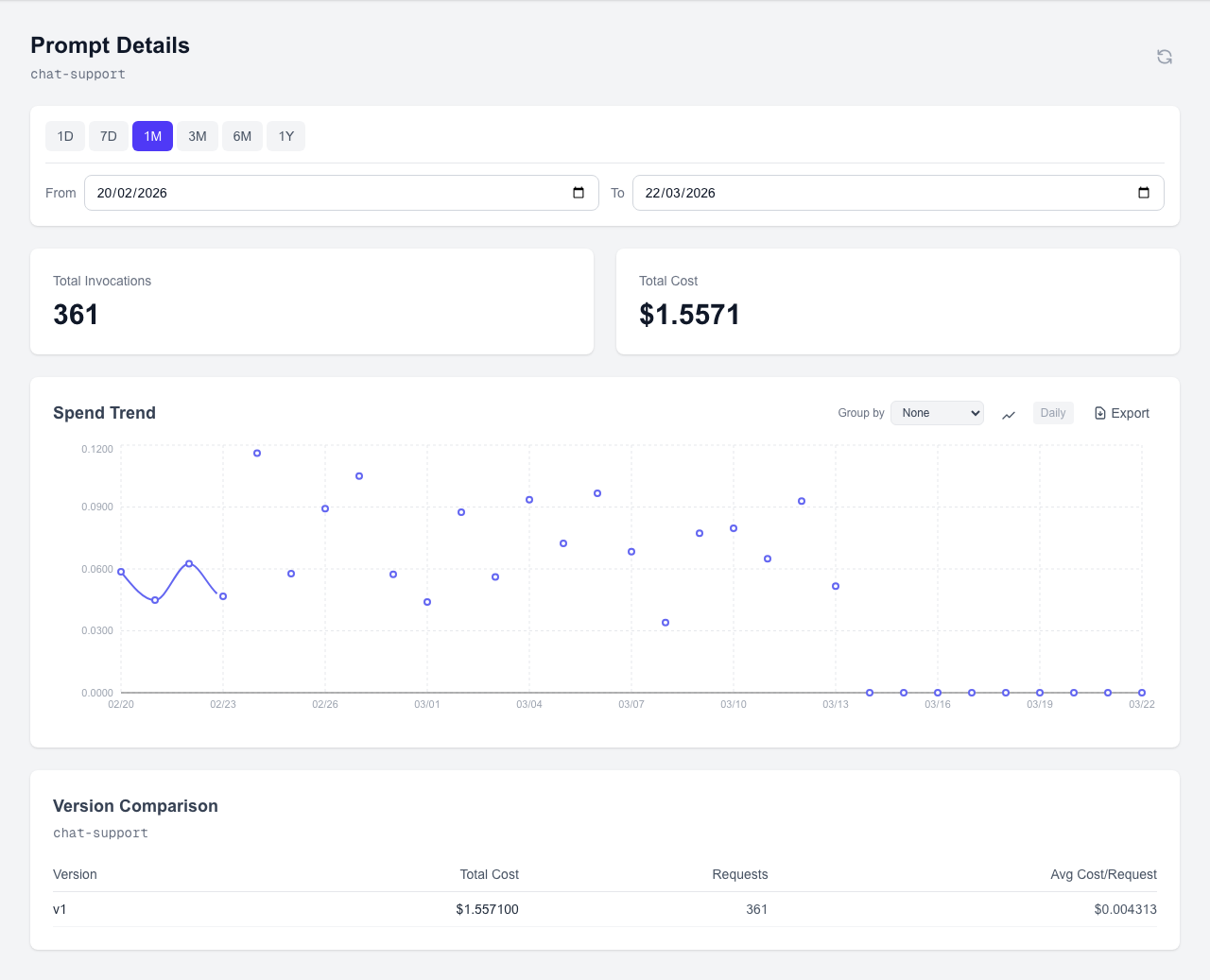
Screenshot: Prompt detail page showing version history, cost per version, and active version indicator
Creating a Version
Navigate to a prompt and click "Add Version". Fill in the configuration:
- Model: The OpenAI model name (e.g., gpt-4o, gpt-3.5-turbo)
- Temperature: The sampling temperature for this version
- Max Tokens: The maximum token limit for responses
Mark a version as active to associate future requests with it automatically. Only one version can be active at a time.
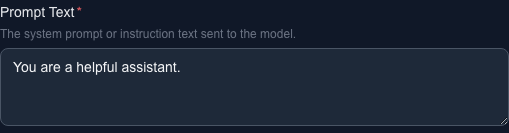
Screenshot: Version creation form with model, temperature, and max_tokens fields and an active toggle
Version Comparison
The version comparison chart shows cost and request volume side-by-side across all versions of a prompt. Use this to validate whether a configuration change (e.g., switching from gpt-4o to gpt-3.5-turbo) reduced costs or improved efficiency.

Screenshot: Version comparison chart showing cost and request count bars for each version
API Keys
API keys authenticate your requests to the AI Prompt Cost proxy. Each key is tied to a team, enabling automatic team-level cost attribution.
Creating a Key
Navigate to the API Keys page and click "Create Key". Select the team this key should belong to and give it an optional description. The key is generated immediately.

Screenshot: API key creation form with team selector and optional description field
New Key Banner
After creating a key, a banner displays the full key value with a copy button. This is the only time the complete key is visible.
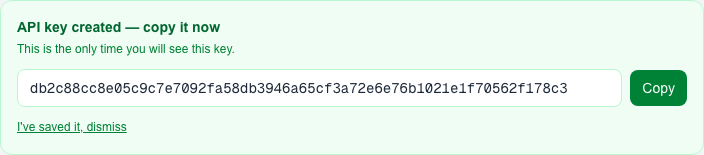
Screenshot: New API key banner showing the full key value with a copy-to-clipboard button
Viewing and Managing Keys
The keys list shows all active and revoked keys. Active keys display a masked preview (e.g., apc_...x4f2), the associated team, and creation date. Revoked keys are shown with a strikethrough style.
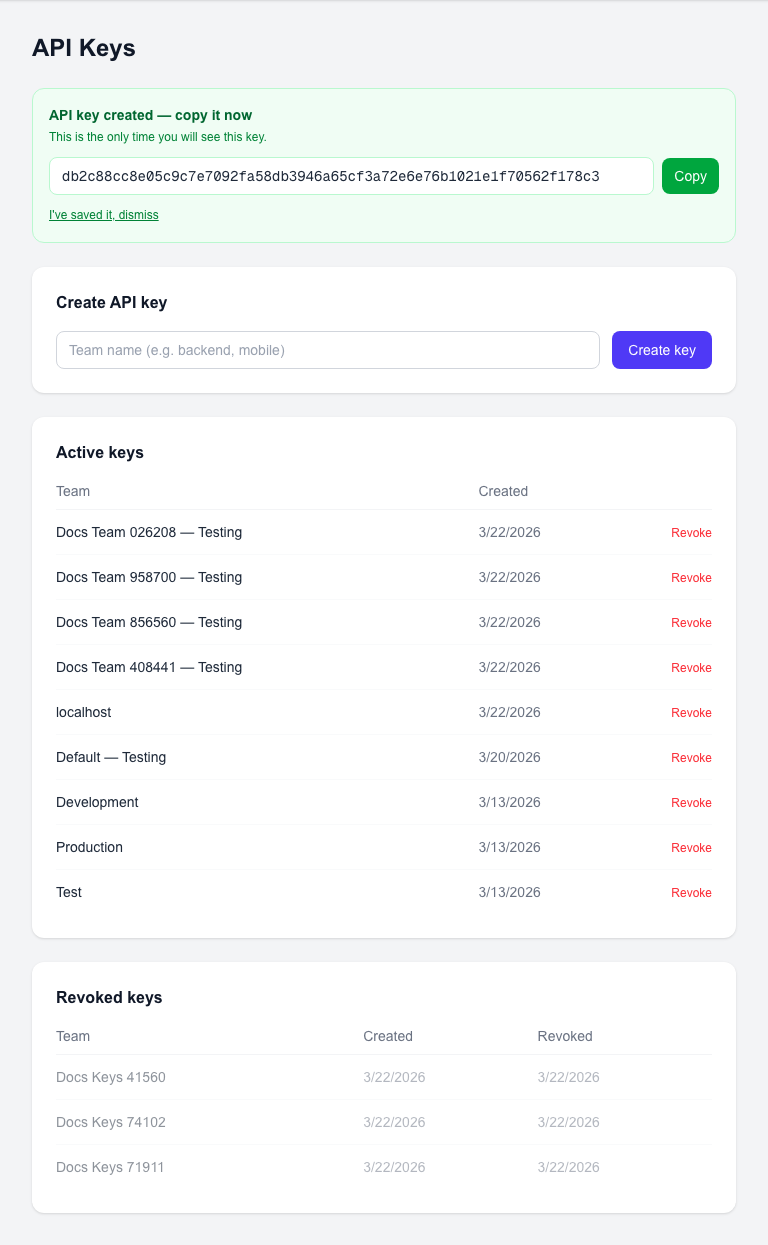
Screenshot: API keys list showing active keys with masked values and revoked keys with strikethrough styling
Revoking a Key
Click the revoke button next to any active key to permanently disable it. Revoked keys cannot be re-activated — create a new key if needed. Any requests using a revoked key will receive a 401 Unauthorized response.
Key-Team Relationship
Every API key belongs to exactly one team. When a request is made with a key, the cost is automatically attributed to that key's team. This enables team-level cost tracking without any additional metadata in your requests. For accurate team attribution, create separate keys for each team.
Teams
Teams let you organize API usage and attribute costs to different groups within your organization. Each team can have one or more API keys.
Teams List
The teams page shows all teams in your organization with their total cost and number of API keys. Click any team to view its details, including associated keys and cost breakdown.
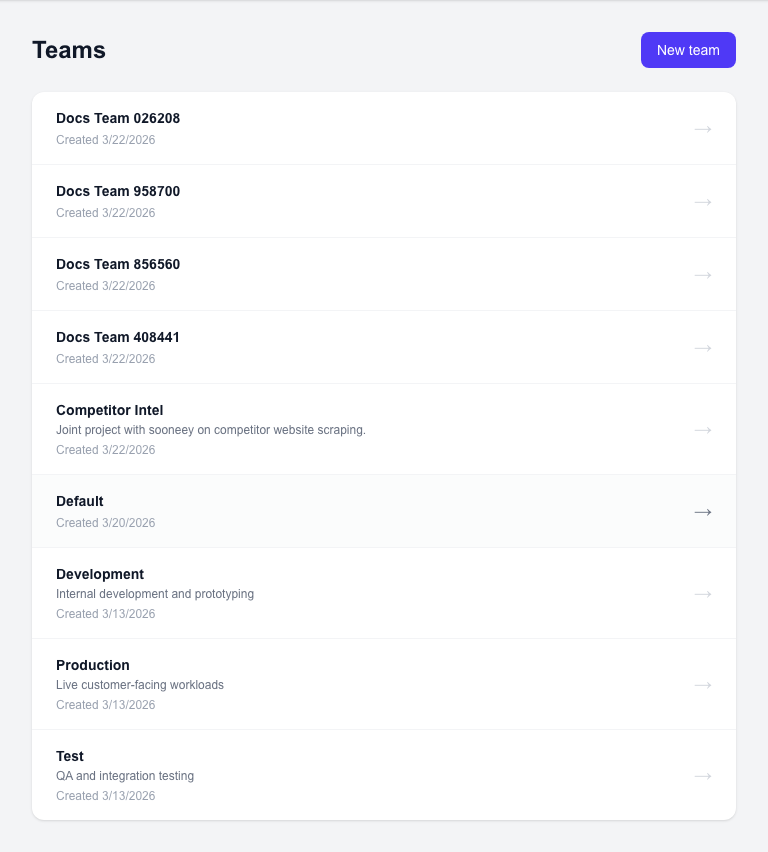
Screenshot: Teams list page showing team names, total cost, API key count, and navigation to team details
Creating a Team
Click "Create Team" and enter a team name. Team names should be descriptive and match your organizational structure (e.g., "backend", "mobile-app", "data-science").
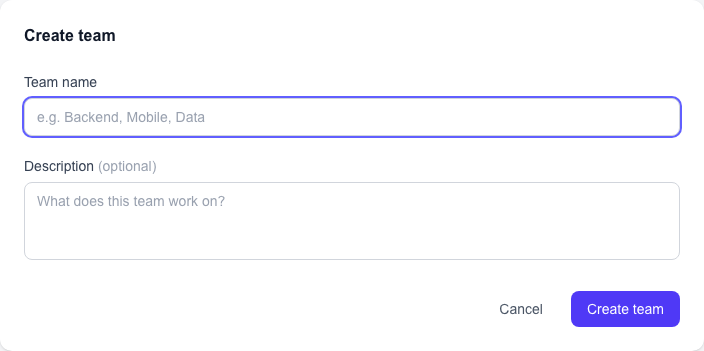
Screenshot: Create team form with team name input field and submit button
Team-to-API-Key Relationship
Teams are the primary unit for cost attribution. The relationship works as follows:
- Each API key belongs to exactly one team
- A team can have multiple API keys
- All requests made with a team's keys are attributed to that team
- The "Spend by Team" dashboard view aggregates costs across all of a team's keys
Team-Level Cost Attribution
Cost attribution happens automatically based on the API key used. No additional metadata is needed in your requests. To get accurate per-team costs, create a dedicated API key for each team and use it consistently in that team's services.
Organization Settings
Organization settings let you manage who has access to your AI Prompt Cost account. View current members, invite new collaborators, and remove access when needed.
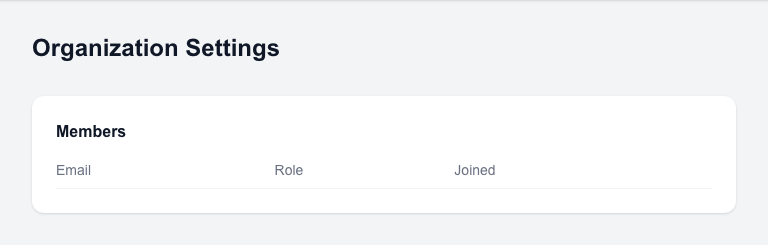
Viewing Members
The members list shows all users in your organization with their email, role (owner or member), and join date.

Screenshot: Organization members list showing user emails, roles, and join dates
Inviting Members
Enter an email address in the invite form and click "Send Invite". The invited user will receive an email with a link to join your organization.
Screenshot: Member invite form with email input field and Send Invite button
Removing Members
Click the remove button next to any member to revoke their access. Removed members lose access to the dashboard and all organization data immediately.
API Reference
/api/proxy/v1/openai/chat/completionsProxies a chat completion request to OpenAI and logs usage metadata. Returns the unmodified OpenAI response.
Headers
Authorization: Bearer <api_key> (required), X-Provider-Key: <openai_key> (required), Content-Type: application/json (required)
Request Body
{
  "model": "gpt-4o",
  "messages": [
    { "role": "system", "content": "You are a helpful assistant." },
    { "role": "user", "content": "Summarize this document..." }
  ],
  "temperature": 0.7,
  "max_tokens": 500,
  "_aipromptcost": {
    "prompt_key": "document-summarizer",
    "feature_tags": ["summarization", "documents"],
    "version": 2
  }
}
Response
{
  "id": "chatcmpl-abc123",
  "object": "chat.completion",
  "created": 1700000000,
  "model": "gpt-4o",
  "choices": [
    {
      "index": 0,
      "message": { "role": "assistant", "content": "Here is a summary..." },
      "finish_reason": "stop"
    }
  ],
  "usage": { "prompt_tokens": 42, "completion_tokens": 120, "total_tokens": 162 }
}/api/proxy/v1/anthropic/messagesProxies a messages request to Anthropic and logs usage metadata. Returns the unmodified Anthropic response.
Headers
Authorization: Bearer <api_key> (required), X-Provider-Key: <anthropic_key> (required), Content-Type: application/json (required), anthropic-version: 2023-06-01 (optional, defaults to 2023-06-01)
Request Body
{
  "model": "claude-sonnet-4-20250514",
  "max_tokens": 500,
  "messages": [
    { "role": "user", "content": "Summarize this document..." }
  ],
  "system": "You are a helpful assistant.",
  "_aipromptcost": {
    "prompt_key": "document-summarizer",
    "feature_tags": ["summarization", "documents"],
    "version": 2
  }
}
Response
{
  "id": "msg_abc123",
  "type": "message",
  "role": "assistant",
  "content": [
    { "type": "text", "text": "Here is a summary..." }
  ],
  "model": "claude-sonnet-4-20250514",
  "stop_reason": "end_turn",
  "stop_sequence": null,
  "usage": { "input_tokens": 42, "output_tokens": 120 }
}/api/aggregations/monthlyReturns total cost for the current or specified period. Filter by provider to see per-provider spend.
Headers
Authorization: Bearer <api_key> (required)
Query Params
start (ISO date string, optional), end (ISO date string, optional), provider (string, optional — 'openai' or 'anthropic'; omit for all providers)
Response
{
  "total_cost": 12.45,
  "period": { "start": "2026-02-01", "end": "2026-02-28" }
}/api/aggregations/by-promptReturns cost and request count grouped by prompt key. Filter by provider to see per-provider breakdown.
Headers
Authorization: Bearer <api_key> (required)
Query Params
start (ISO date string, optional), end (ISO date string, optional), provider (string, optional — 'openai' or 'anthropic'; omit for all providers)
Response
{
  "prompts": [
    { "prompt_key": "document-summarizer", "total_cost": 4.20, "request_count": 312 },
    { "prompt_key": "chat-assistant", "total_cost": 2.10, "request_count": 890 }
  ]
}/api/aggregations/by-teamReturns cost and request count grouped by team. Filter by provider to see per-provider breakdown.
Headers
Authorization: Bearer <api_key> (required)
Query Params
start (ISO date string, optional), end (ISO date string, optional), provider (string, optional — 'openai' or 'anthropic'; omit for all providers)
Response
{
  "teams": [
    { "team_name": "backend", "total_cost": 8.30, "request_count": 540 },
    { "team_name": "frontend", "total_cost": 3.15, "request_count": 220 }
  ]
}/api/aggregations/version-comparisonReturns cost and request count per version for a given prompt. Filter by provider to see per-provider breakdown.
Headers
Authorization: Bearer <api_key> (required)
Query Params
prompt_key (string, required), start (ISO date string, optional), end (ISO date string, optional), provider (string, optional — 'openai' or 'anthropic'; omit for all providers)
Response
{
  "versions": [
    { "version_number": 1, "total_cost": 6.00, "request_count": 400, "avg_cost_per_request": 0.015 },
    { "version_number": 2, "total_cost": 4.20, "request_count": 400, "avg_cost_per_request": 0.0105 }
  ]
}
provider query parameter
All aggregation endpoints accept an optional provider query parameter. When present (e.g., ?provider=anthropic), results are filtered to that provider only. When omitted, results span all providers and reflect combined spend across OpenAI and Anthropic.
Best Practices
- →Keep prompt_key consistent — Use the same key across all requests for a given prompt. Changing it creates a new prompt record and breaks historical continuity.
- →Use feature_tags for product analytics — Tag requests by feature area to understand AI costs per product surface. Multiple tags allow for flexible categorization.
- →Use separate API keys per team — This enables accurate team-level cost attribution automatically. Each team should have its own dedicated key.
- →Register prompts before going to production — Pre-registering prompts lets you add descriptions and set up versioning before traffic arrives. This keeps your analytics clean from day one.
- →Keep prompt content on your side — AI Prompt Cost never stores prompt text. Your intellectual property stays in your codebase.
- →Store provider keys securely — The X-Provider-Key header contains your user's OpenAI API key. Store these securely, rotate them regularly, and never log them in plain text.
Troubleshooting
| Symptom | Likely Cause | Fix |
|---|---|---|
| 401 Unauthorized | Invalid or revoked platform API key, or missing X-Provider-Key header | Check your AI Prompt Cost API key in the dashboard. Ensure it is active and the Authorization header is formatted as 'Bearer <key>'. Verify the X-Provider-Key header is present. |
| 400 Bad Request | Malformed JSON or missing required fields | Ensure the request body is valid JSON with at least model and messages fields. Check Content-Type is application/json. |
| 502 Bad Gateway | OpenAI API is unreachable, or user's provider key is invalid | Check the X-Provider-Key value is a valid OpenAI key. Verify OpenAI service status at status.openai.com. |
| No cost metrics | Missing prompt_key in _aipromptcost | Add _aipromptcost.prompt_key to your request body. Without it, usage is logged under 'unknown'. |
| Wrong team costs | Using a shared API key across teams | Create a dedicated API key per team in the dashboard. Each key is tied to one team. |
| Version not tracked | No active version set for the prompt | Go to the prompt in the dashboard and mark a version as active. Only the active version receives new usage. |
Verifying API Key Validity
If you suspect your API key is invalid or revoked, go to the API Keys page in the dashboard. Active keys show a green status indicator. If your key is not listed or shows as revoked, create a new key and update your application configuration.
Checking Provider Key Configuration
If you receive 502 errors, verify your OpenAI provider key is valid by making a direct request to the OpenAI API. If the direct request succeeds but the proxy request fails, check that the X-Provider-Key header value matches your OpenAI key exactly, with no extra whitespace or formatting.